ACTIVITY 9 - HOW TO USE AN INTERACTIVE WHITEBOARD

Inspiring Ideas to Help you get the Most out of the IWB in Your Classroom

Over the last decade or so, Interactive White Boards (IWBs) have proliferated in schools in the U.S. and across much of the world. Some teachers have embraced them, and others, well … not so much. Unfortunately, some schools did not offer the professional development necessary to help teachers become familiar with these systems and get the most out of their availability. Many teachers were left to their own devices to learn and use their IWBs.
In this blog entry on edweek.org, a few specialists stated their views on the topic. Curriculum developer Ben Stern advises teachers not to limit the use of the board to simple exercises like hangman or matching, but to take a step forward and anticipate students' interest. Patti Grayson, a fourth grade teacher, gives a useful hint to look for resources online, ranging from using mathematical modelling tools like Thinking Blocks to connecting to a webinar via Skype. Principal Eva O'Maram proved that using IWBs increased creativity and engagement in the learning process on both sides: the teachers and the students.
In this article, we offer a number of creative approaches to using Interactive White Boards. Whether you are an avid user of this technology, or someone who has held back, we hope that some of these ideas inspire you!
  1. Google Earth
Once installed, it can be helpful not only during geography lessons, but in almost every class. Explore the world, find rare plants and animals, discuss different cultures, civilizations, languages, architecture, design, tour football stadiums and museums, play GeoGuessr (a tiny web app which takes a user to a place in the world using Street View technology and makes him or her guess where it is).
  1. Team Competitions
Teachers have to remember that fun is an essential attribute of a successful lesson in the eyes of their students. Technologies like Kinect and Wii allow users to integrate, have fun and learn simultaneously when using physical response techniques. Learning science teaches us that when we move, we can learn more effectively. Divide a group of students into teams and make them compete against each other in a game needing both their knowledge and cunning. It builds team spirit and competitiveness – two skills not to be underestimated in the adult world.
  1. Teach Students Basic Image, Sound and Video Editing
With a variety of software available – like Google+'s Photos Editor – students can edit, resize and enhance photos. Working on a fun example can be an enjoyable way to lead young learners into the world of graphic editing. The same can be done with sound and movies. Teachers can show the group how to change the tone of someone's voice or add special effects to a video, and then let students act accordingly. Enjoyment is guaranteed!
  1. Spelling Competition
Although some argue against rivalry in a classroom, some students love it. A teacher can organise a spelling bee competition for learners with their works being shown on the board and automatically checked by a built-in spellchecker. Then, the result is transformed into points and the winner is announced.
  1. Take A Virtual Tour
Many important places with cultural heritage and academic value offer virtual tours online, which can be accessed through the IWB and shown to students. Some of them are also interactive, which will keep the children interested and engaged. Virtual tours are also a good idea before and after a real visit to a location, both as an introduction and a summary of the trip.
  1. Record Students
Some whiteboards come with a camera and a sound system. It is a great feature which can be used to record students' presentations, speeches and projects. This can be used to offer constructive critique. At the end of the school year a look-back lesson can be organized, introducing a sentimental mood and a lot of fun while re-watching old clips. (Of course, be sure to keep privacy considerations in mind here – make sure you are in conformance with your school's policy).
  1. Collaborate
IWBs allow students to interact with each other and with the teacher. For example, work on a project together, with different aspects done by different students, in front of a class. Not only will this engage the group, but also provide them with the visible fruits of their labors.
  1. Download Flash Videos and Applications (to be prepared for a loss of connectivity)
It is always a good idea to be ready for a network downtime. With a few applications, like SWF Catcher, it is possible to store online content on a local hard drive and access it without being connected to the Internet. This can include videos, mini games and Interactives that enable students to interact and learn.
  1. Recap of a Field Trip
Students and teachers can bring their photos and videos taken during a field trip, organize them and make a fun and educative summary of their common experience, using previously learned skills. This can make students see that everything they learned had a purpose and was valuable – plus it gives them unforgettable memories.
  1. Interactives
It comes as no surprise that Interactive White Boards are great for Interactive content! Here's are couple sets of resources, from this articleon the NEA Member Benefits site:
  • National Library of Virtual Manipulatives – “A wide range of virtual manipulatives that work with almost all IWBs. Interactive digital tools for exploring data, algebra, geometry and more can be found here ready to be “played” with on your IWB.”
  • Interactive Whiteboard Resources from Topmarks – This page offers an index of dozens of websites, online activities and web-based resources that work well with many Interactive White Boards.

CALLIGRAPHY FONTS

lackChancerybyDoug Miles

Black Chancery +
Beyond WonderlandbyChris Hansen

Beyond Wonderland Regular
RM Albionbyp2pnut

RM Albion
Lime Glory CapsbyLime

LIME GLORY CAPS
Carolingia (BigfooT)byRiky Vampdator

Carolingia
Nemo NightmaresbyChris Hansen

Nemo Nightmares Regular
Bradley GratisbyJustin Callaghan

Bradley Gratis
MaelbyDale 
Mael Regular
A Dark WeddingbyMR.FISK FontsA Dark WeddingPure evil 2 Regular
Satanas Humanum SalvatorbyMR.FISK Fonts
Download
Satanas Humanum Salvator
BenegraphicbyTepid Monkey Fonts
Benegraphic
Seven Swordsmen BBbyBlambot Comic Fonts
Seven Swordsmen
CalliGravitybyvin

CalliGravity
CretinobyRaymond LarabieCretino Regular
Dukeplusbyanke-artDukeplus Regular
Quigley WigglybyNick CurtisQuigly Wiggly Regular

ACTIVITY 8 - HOW TO CREATE PPT USING LAPTOP


Step 1: Launch the PowerPoint Program

Picture of Launch the PowerPoint Program
When you launch the PowerPoint program, you may be prompted to pick what kind of document you want to create.  Choose to create a blank presentation.  If it does not ask you this, a blank presentation will automatically launch.
Step 2: Choosing a Design
Picture of Choosing a Design
The next thing you want to do is decide what design you want for the presentation. To do this, go to the 'Design' tab at the top of the page. Scroll through all the options and decide which one looks best for the presentation you want. To get a preview of what the design will look like before applying it to the presentation, hover over the design you want to preview. This design will be automatically continued throughout the rest of your presentation. Once you have more than one slide, you can add a different design for just one slide. To do this, select the slide you want to change the design on by clicking on it. It will pop-up as the big slide in the screen. Then you can right-click the design you want for this slide and select 'Apply to Selected Slide'. It will appear on that slide, but will not change the design of the other slides.
Step 3: Create Title Page
Picture of Create Title Page
Click the first box that says 'Click to add title' and add the title of your presentation.  Click the bottom box to add your name, or any other subtitle that you choose.  Once you have your text in the boxes, you can change their font, size, color, etc. with the toolbar options at the top.  You can change the size of the text box by selecting it, and then dragging the corners of the box.  To move the text boxes, select the box, and move your arrow over the border of the box.  A four-arrow icon will appear, and clicking with this icon will allow you to move the text boxes wherever you choose.
Step 4: Add More Slides
Picture of Add More Slides
Chances are, you are going to need more than one slide.  There are a few ways you can add more slides.  Notice that there is a separate area to the left of the screen where your first slide is located.  The first way to add a slide is to right-click the area under where your first slide is located and select 'New Slide'.  A new slide will appear.  The second way to add another slide it to click 'New Slide' in the toolbar above the slides.  This button is divided into two parts,. The top will insert a new slide with a default layout.  You can also click the bottom half of this button, which will allow you to choose what type of layout you want.  You can choose a slide with two text-boxes and a title, one text-box, only a title, and many other options.  You will see your new slide appear to the left under the first, as well become the large slide that you can edit.  The design you picked earlier will have carried over to this slide.  The design will carry over for the rest of the slides you create unless you decide to change just one, like described earlier.  The guideline layout you chose will appear, and you can then add in your information.
Step 5: Add Charts, Pictures, Graphs, Etc.
Picture of Add Charts, Pictures, Graphs, Etc.
If you want to insert a chart, picture, graph, or any other graphic, click on the 'Insert' tab at the top of the window.  Here you will see buttons of all the options of what you can insert into your slide.  Click the designated box and insert what it is you want to have on that slide.  A second way you can insert pictures and graphs is when you have an empty text or image box.  Little pictures of the same options you saw in the toolbox will show up in the middle of the box, and you can click any of these to insert as well.  Once you have your chart or picture, you can add a border or edit it however you want in the 'Format' tab.
Step 6: Add Transitions
Picture of Add Transitions
To add transitions in between your slides, click the 'Animations' tab at the top of the page.  Here you can scroll through all the options of transitions, and hover over them to see a preview.  Select the slide you want the transition applied to, and then click the transition you chose.  You can do this for every slide, selecting the same or different transitions.
Step 7: Changing the Order
Picture of Changing the Order
Once you have all your slides made, you can change the order of the slides.  To do this, click and drag the slides from where they are to where you want them in the order.  Another possibility, which is particularly useful if you presentation is longer, is to click the 'Outline' button.  You can find this small button above the left area where all your slides are located smaller, directly to the right of the 'Slides' button.  Here you will see a list of all your slides and you can click and drag your slides to where you want them.
Step 8: Play the Presentation
Picture of Play the Presentation
Once you have all your slides completed and in the order you want, view your slideshow.  Click the 'Slide Show' tab at the top of the page and select 'From Beginning'.  You can go through your entire slideshow, and change slides by clicking or pressing the right arrow.  A shortcut to this is pressing F5.  Congratulations! You have now made a PowerPoint presentation.

ACTIVITY 7 - HOW TO USE A COMPUTER

Using a computer

The main screen you'll start from is the desktop. This is sort of like a main menu or a table of contents. From here, you can access the programs and features you need to use your computer.
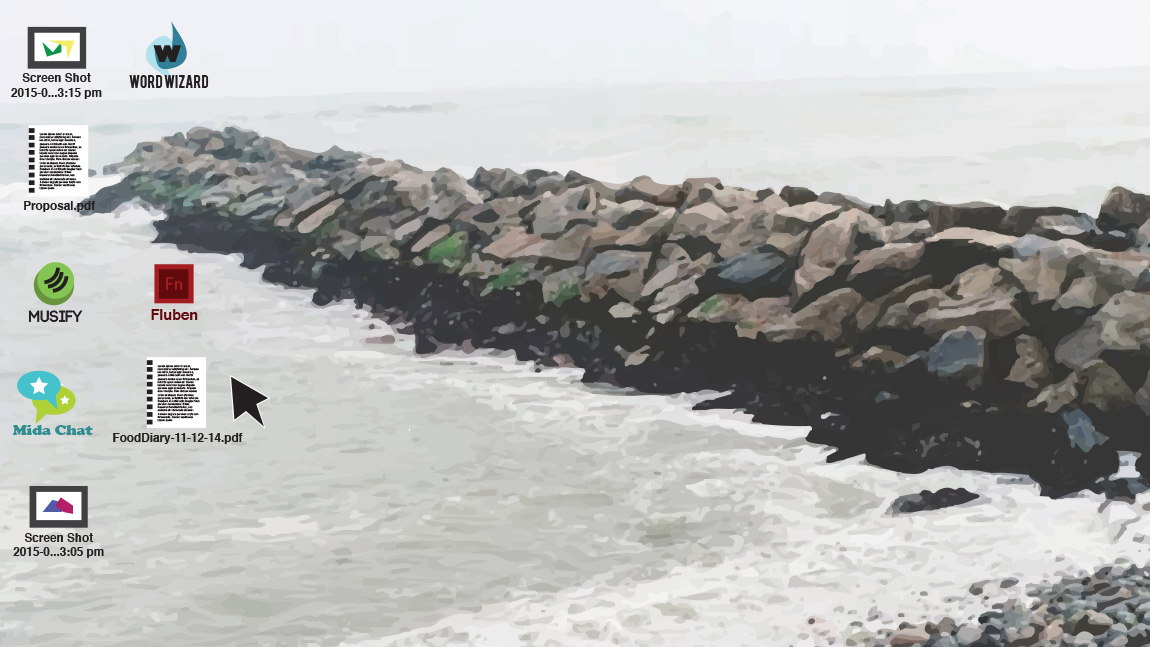
Icons are used to represent the different files, applications, and commands on your computer. An icon is a small image that's intended to give you an idea at a glance of what it represents, like a logo. Double-clicking an icon on the desktop will open that application or file.
Icons on a desktop
button is a command that performs a specific function within an application. The most commonly used commands in a program will be represented by buttons.
Menus are organized collections of commands and shortcuts. Click a menu to open it and display the commands and shortcuts within. Then click an item in the menu to execute it.
When you open an application or folder, it is displayed in its own window. A window is a contained area—like a picture within a picture—with its own menus and buttons specific to that program. You can rearrange multiple windows on the desktop and switch between them.


Getting to know your computer's OS

Now that you know the absolute basics of using a computer, it's time to learn more about your computer's operating system. We'll be talking about the two most common operating systems in this lesson: Microsoft Windows and Mac OS X.
Getting to know the interface
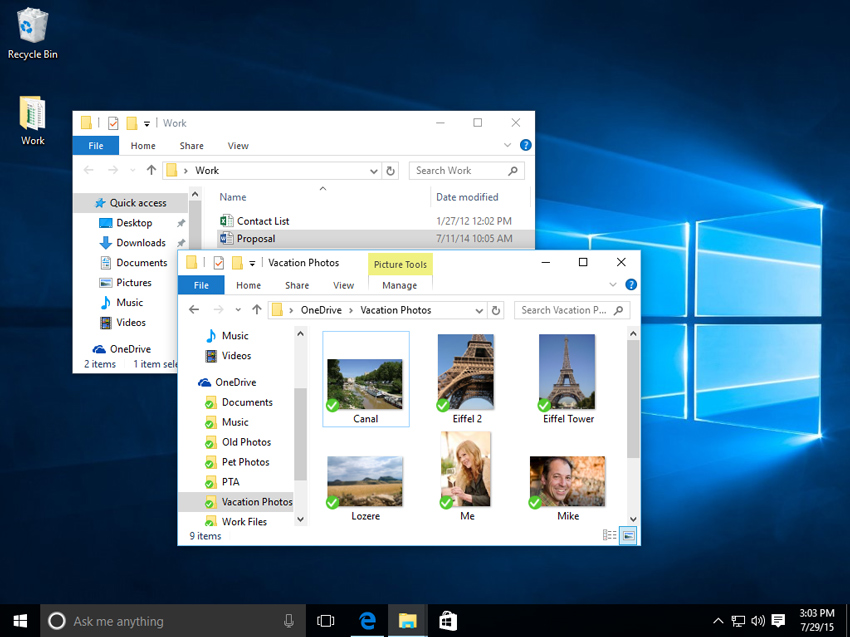
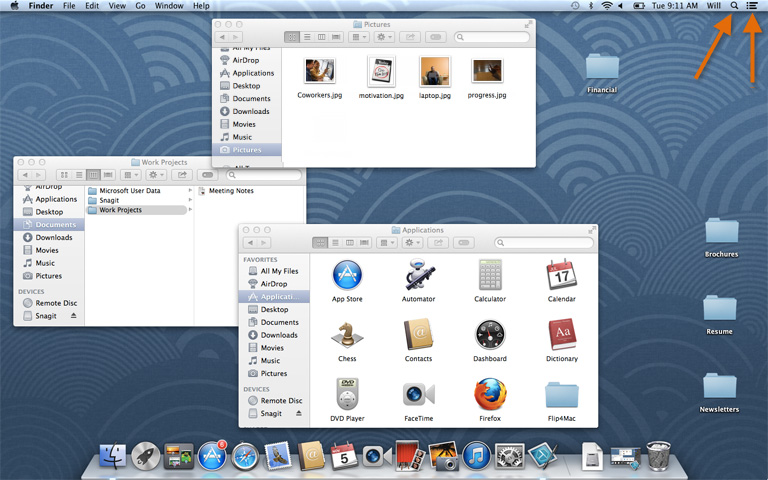
Both PCs and Macs use a graphical user interface (GUI), and they each have their own look and feel. The interactives below will introduce you to the Windows and Mac interfaces.
Click the buttons in the interactive below to learn more about the Windows interface.
windows desktop
Click the buttons in the interactive below to learn more about the Mac OS X interface.
os x desktop
If you have difficulty seeing or hearing—or if you have trouble manipulating the mouse or keyboard—there are many settings that can help make your computer easier to use. To learn more, check out our lesson on Using Accessibility Features.

All about your computer's file system

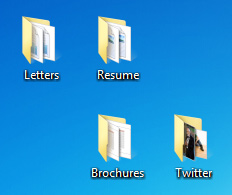
No matter which operating system you use, your computer uses folders to organize all of the different files and applications it contains. Folder icons on your computer are designed to look like file folders full of documents or pictures.
Folders on the desktop
Each operating system has its own file system, which helps you find your folders and files. If you have a Windows PC, you'll use the File Explorer (also known as Windows Explorer). If you have a Mac, you'll use Finder. Here, we'll talk about the basic functions that are common to all computer file systems.
To find out more about file systems on Macs, check out the lesson onWorking with Files in our OS X Basics tutorial. To learn more about PC file systems, take a look at the Working with Files lesson in our Windows Basics tutorial.

Opening your computer's file system

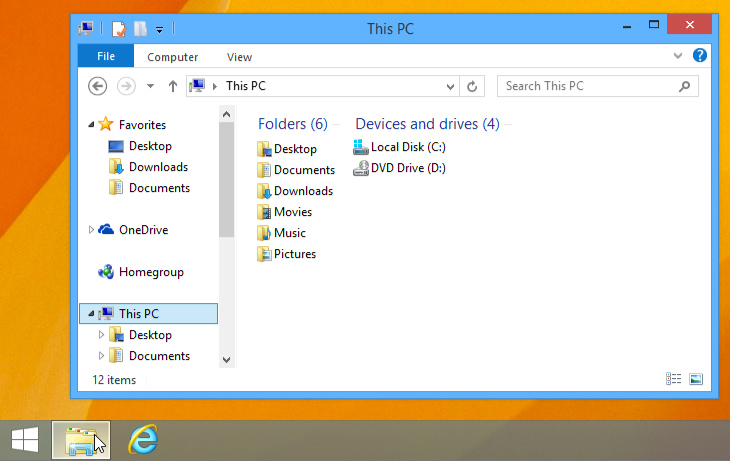
Whether you're using a PC or a Mac, the file system icon will be in the bottom-left part of the screen. On a PC, the File Explorer icon looks like a folder, as in the image below.
screenshot of Windows 8
Deleting files
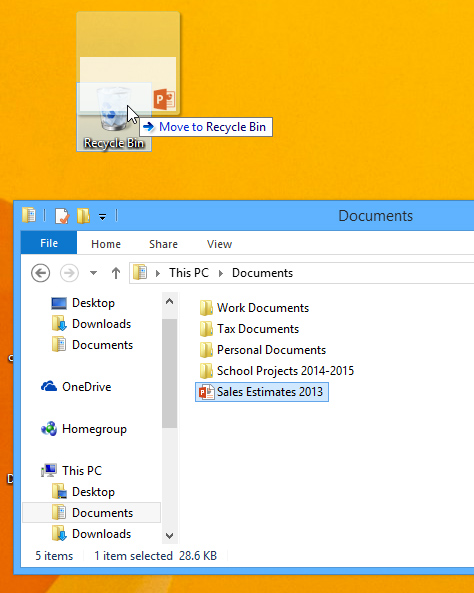
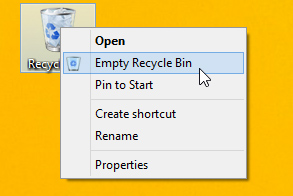
OS X and Windows use a Trash can—or Recycle Bin—to prevent you from accidentally deleting files. When you delete a file, it is moved to the Trash can. If you change your mind, you can move the file back to its original location.
moving a file to the recycle bin
If you want to permanently delete the file, you will need to empty the Trash or Recycle Bin. To do this, right-click the icon and select Empty.
empying the recycle bin

Opening files and applications

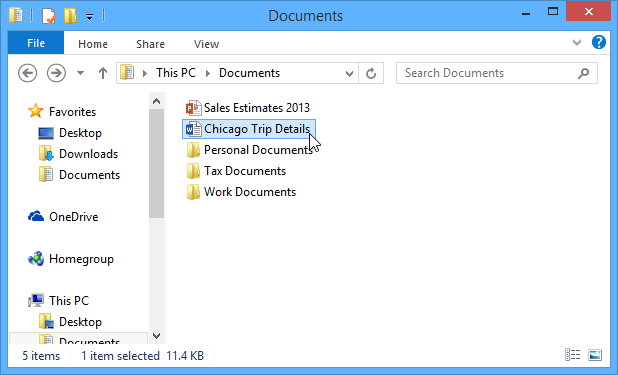
Each application on your computer has a group of file types—or formats—it is able to open. When you double-click a file, your computer will automatically use the correct application to open it. In our example, we're opening a Microsoft Word document (Chicago Trip Details), which will open in Microsoft Word.
opening a file
However, there may be times you may want to open an application directly, instead of just opening a file.
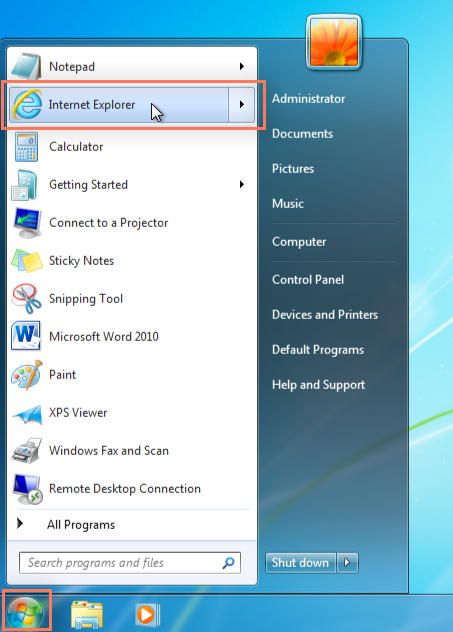
  • To open an application in Windows, click the Start button, then select the desired application. If you don't see the one you want, you can click All Programs/All Apps to see a full list, or simply type the name of the application on your keyboard to search for it. In the example below, we're opening Internet Explorer.
    opening internet explorer
  • Shutting down your computer
When you're done using your computer, it's important to shut it down properly.
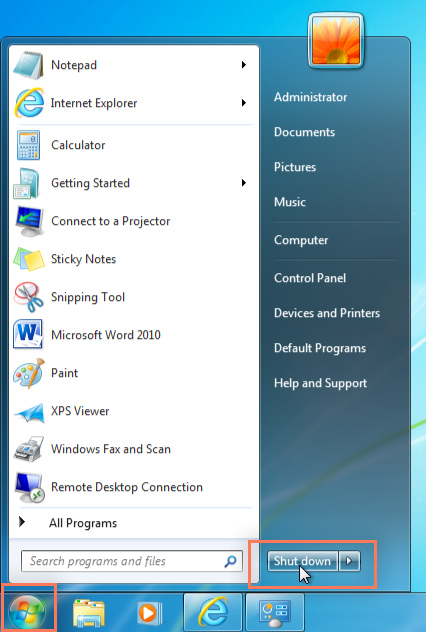
  • To shut down Windows, click the Start button, then select Shut down (in some versions, this may say Turn Off Computer or look like the power symbol).
    screenshot of Windows 7
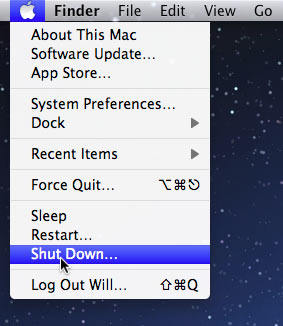
  • To shut down a Mac, click the Apple icon, then select Shut Down.
    Shutting down Mac OS X


Sound alarm

To