Using a computer
The main screen you'll start from is the desktop. This is sort of like a main menu or a table of contents. From here, you can access the programs and features you need to use your computer.
Icons are used to represent the different files, applications, and commands on your computer. An icon is a small image that's intended to give you an idea at a glance of what it represents, like a logo. Double-clicking an icon on the desktop will open that application or file.

A button is a command that performs a specific function within an application. The most commonly used commands in a program will be represented by buttons.
Menus are organized collections of commands and shortcuts. Click a menu to open it and display the commands and shortcuts within. Then click an item in the menu to execute it.
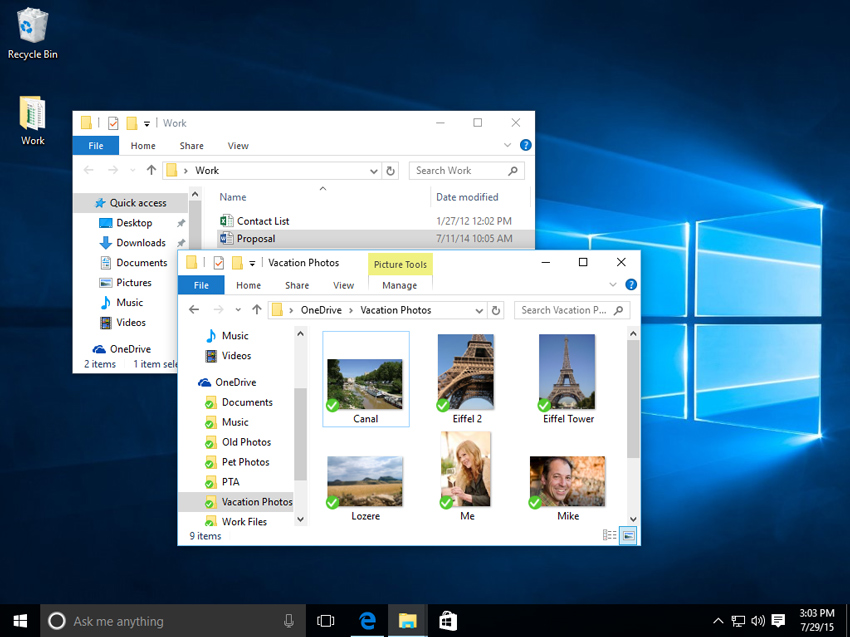
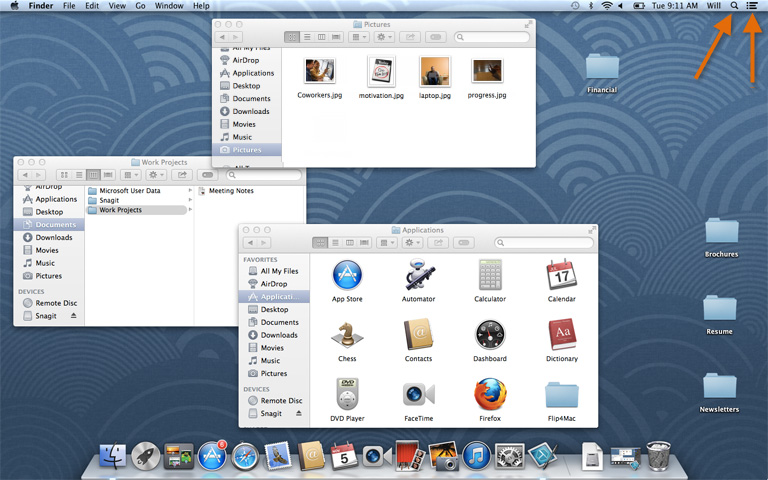
When you open an application or folder, it is displayed in its own window. A window is a contained area—like a picture within a picture—with its own menus and buttons specific to that program. You can rearrange multiple windows on the desktop and switch between them.
Getting to know your computer's OS
Now that you know the absolute basics of using a computer, it's time to learn more about your computer's operating system. We'll be talking about the two most common operating systems in this lesson: Microsoft Windows and Mac OS X.
Getting to know the interface
Both PCs and Macs use a graphical user interface (GUI), and they each have their own look and feel. The interactives below will introduce you to the Windows and Mac interfaces.
Click the buttons in the interactive below to learn more about the Windows interface.
Click the buttons in the interactive below to learn more about the Mac OS X interface.
If you have difficulty seeing or hearing—or if you have trouble manipulating the mouse or keyboard—there are many settings that can help make your computer easier to use. To learn more, check out our lesson on Using Accessibility Features.
All about your computer's file system
No matter which operating system you use, your computer uses folders to organize all of the different files and applications it contains. Folder icons on your computer are designed to look like file folders full of documents or pictures.

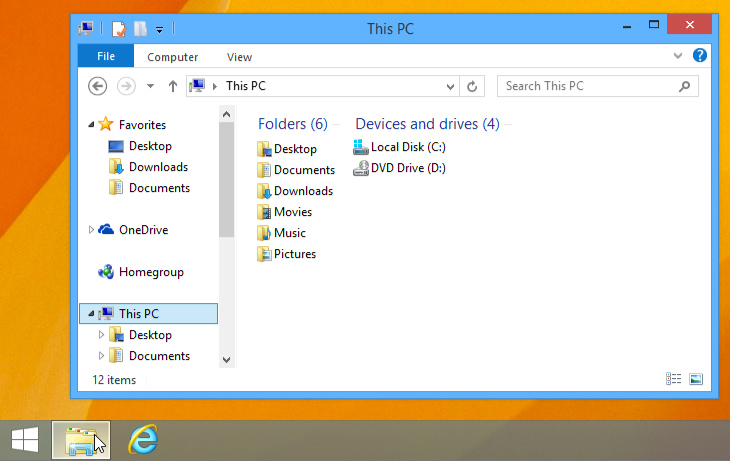
Each operating system has its own file system, which helps you find your folders and files. If you have a Windows PC, you'll use the File Explorer (also known as Windows Explorer). If you have a Mac, you'll use Finder. Here, we'll talk about the basic functions that are common to all computer file systems.
To find out more about file systems on Macs, check out the lesson onWorking with Files in our OS X Basics tutorial. To learn more about PC file systems, take a look at the Working with Files lesson in our Windows Basics tutorial.
Opening your computer's file system
Whether you're using a PC or a Mac, the file system icon will be in the bottom-left part of the screen. On a PC, the File Explorer icon looks like a folder, as in the image below.
Deleting files
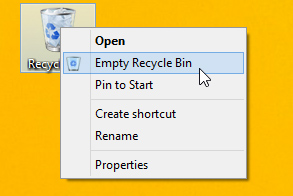
OS X and Windows use a Trash can—or Recycle Bin—to prevent you from accidentally deleting files. When you delete a file, it is moved to the Trash can. If you change your mind, you can move the file back to its original location.
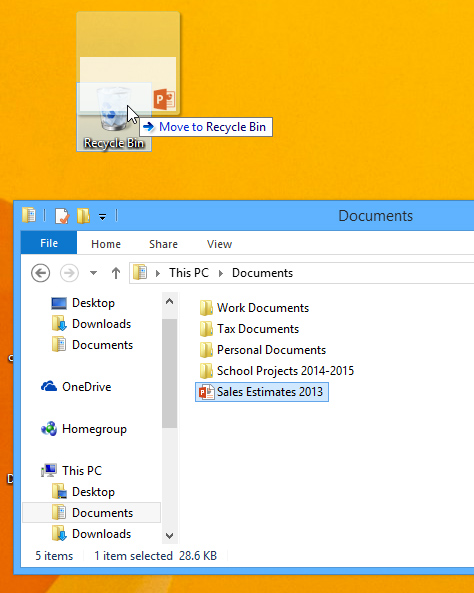
If you want to permanently delete the file, you will need to empty the Trash or Recycle Bin. To do this, right-click the icon and select Empty.
Opening files and applications
Each application on your computer has a group of file types—or formats—it is able to open. When you double-click a file, your computer will automatically use the correct application to open it. In our example, we're opening a Microsoft Word document (Chicago Trip Details), which will open in Microsoft Word.
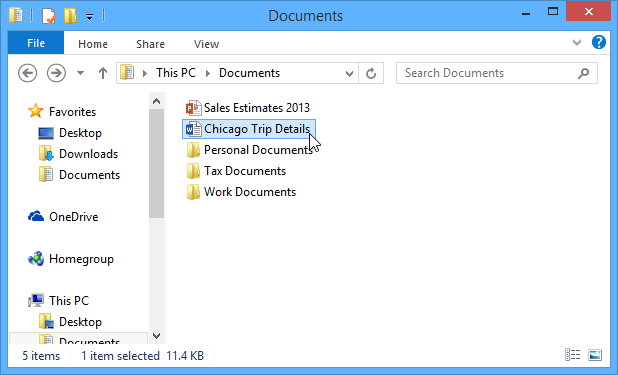
However, there may be times you may want to open an application directly, instead of just opening a file.
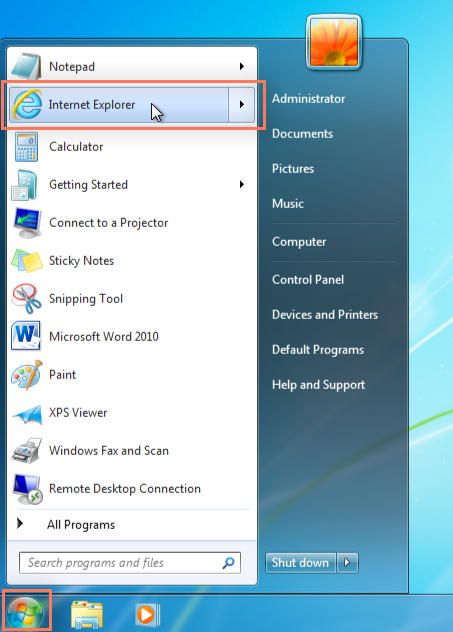
- To open an application in Windows, click the Start button, then select the desired application. If you don't see the one you want, you can click All Programs/All Apps to see a full list, or simply type the name of the application on your keyboard to search for it. In the example below, we're opening Internet Explorer.
- Shutting down your computer
When you're done using your computer, it's important to shut it down properly.
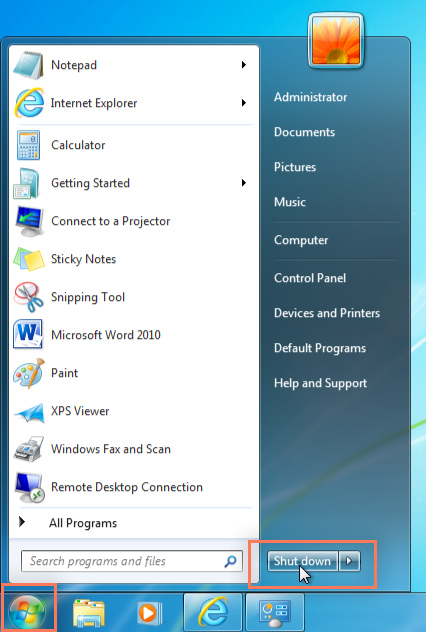
- To shut down Windows, click the Start button, then select Shut down (in some versions, this may say Turn Off Computer or look like the power symbol).
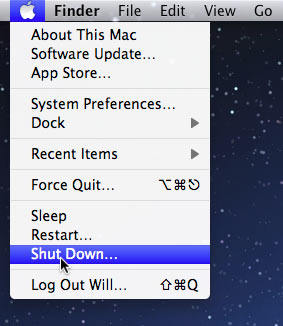
- To shut down a Mac, click the Apple icon, then select Shut Down.


No comments:
Post a Comment